1. Wired beats wireless
Ethernet solves more buffering than anything else. If the TV can’t be wired, move the router closer or add a mesh point. Wi-Fi 5 GHz over 2.4 GHz whenever both are available.
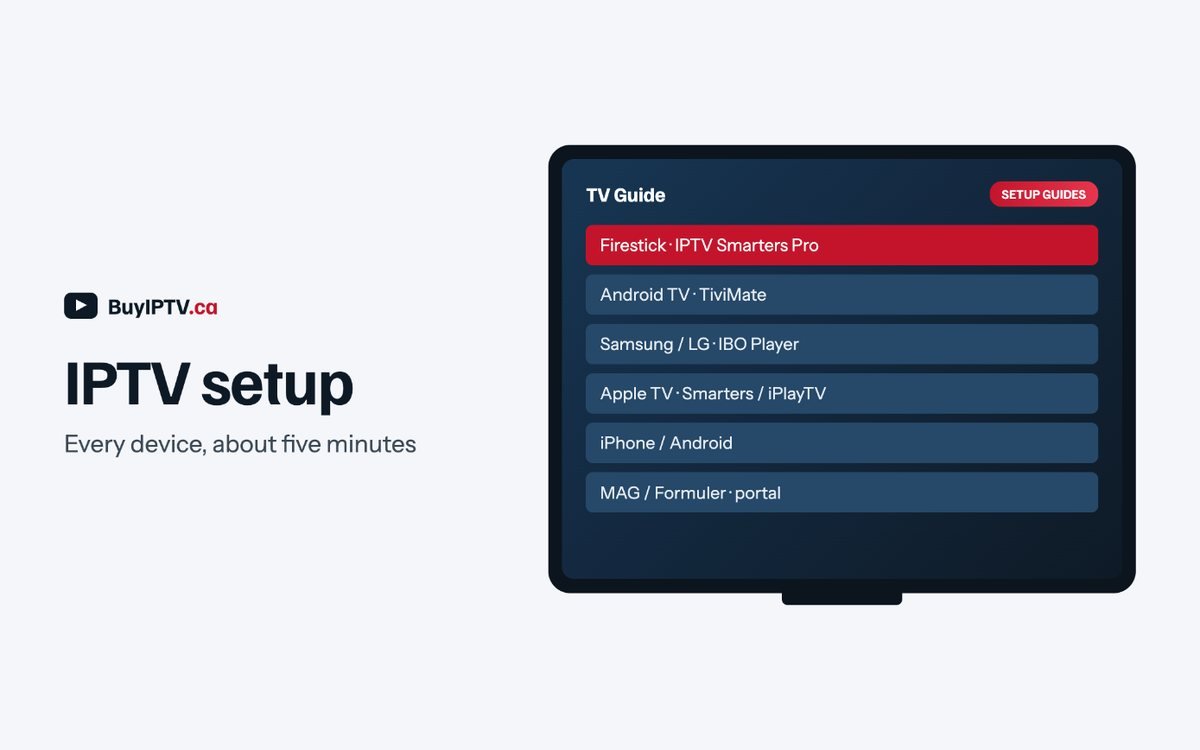
Your login email contains three things: a username, a password and a server address, plus an M3U link that packages all three. Every guide below is the same job in a different app: install the app, enter those three things, wait for the guide to load. Pick your device. The same three details arrive by email with every BuyIPTV.ca plan.
Each guide covers installing the app, adding your login and fixing its common problems.
The most common device among our subscribers. Ten minutes the first time, two minutes after that.
Prefer a better guide? TiviMate installs the same way through Downloader and has the best channel guide on Fire TV; its extras, such as recording and multiple playlists, need a paid Premium upgrade from the developer. Our TiviMate guide has the install code and how Premium is sold. Both apps work with the same login from your IPTV setup.
Firestick tips for Canadian homes. Plug the stick in with the included power adapter, not the TV’s USB port; the port on many Samsung and LG TVs cannot supply enough power for 4K streams. If your router is more than one room away, the $15 Ethernet adapter for Fire TV is the single most effective fix for buffering.
Shield and Chromecast owners: both handle 4K without trouble. On the Chromecast with Google TV, go to Settings → Display & Sound → set “Match content frame rate” to Seamless for smoother sports, a small IPTV setup tweak worth making once.
These TVs don’t run Android, so the player apps come from the TV’s own store and are activated by the TV’s MAC address.
If the app store doesn’t have it: Samsung TVs from 2015 onward and LG TVs from 2016 onward have IBO Player. Older models can use a $40 Fire TV Stick instead for an easier IPTV setup, which is the better experience anyway.

On Apple devices, Smarters is listed as Smarters Player Lite. Our IPTV Smarters guide covers iPhone, iPad, Apple TV and Mac.
Apple TV 4K on Ethernet is the most reliable IPTV device we know of. If you are buying hardware specifically for this IPTV setup, it is the one to buy.
Cellular data: a Full HD stream uses roughly 2 GB an hour, 4K about 6 GB. Watch on Wi-Fi unless your plan is truly unlimited.

Ethernet solves more buffering than anything else. If the TV can’t be wired, move the router closer or add a mesh point. Wi-Fi 5 GHz over 2.4 GHz whenever both are available.
Run a speed test on the streaming device itself, not on your phone. You need a steady 15 Mbps for Full HD and 25 Mbps for 4K per screen. Bell, Rogers and Telus entry plans exceed this; older DSL sometimes does not.
In TiviMate: Settings → Playback → Buffer size → Large. In IPTV Smarters: Settings → Player settings → set the decoder to Hardware. This alone fixes most stuttering on Firesticks.
Firesticks and smart TVs run out of memory after days of standby. A full restart (unplug for ten seconds) clears it.
Most major channels appear two or three times in the list (for example TSN 1 FHD, TSN 1 HD, TSN 1 4K). If one is congested during a big game, another usually isn’t. The full buffering guide sorts causes by when the buffering happens.
Device, app, your ISP, and the exact channel and time it failed. With those, support can usually see the problem on our side within minutes, 9 am to 11 pm ET. Contact support.
Most buffering that only shows up during a big game is a network problem, not an app problem. Getting the network side of an IPTV setup right first solves more tickets than any app setting.
Ethernet beats Wi-Fi for live sport because a wired line has no interference from a microwave, a neighbour’s router or a wall in the way. If your box sits more than one room from the router, that gap is the first thing an IPTV setup should fix, before touching an app setting. The free trial uses this same setup, so it’s a good way to test your network before you choose a plan.
In a typical Canadian apartment, the router usually lands wherever the ISP’s cable enters, often a hallway closet, rarely near the TV; a central, open shelf helps every device in the unit. In a two-storey house, a router in the main-floor office rarely reaches a basement rec room cleanly, so a mesh point on the TV’s own floor is the IPTV setup fix, not a stronger router downstairs.
Where the only wiring near the TV is old cable coax, a pair of powerline adapters plugs into an outlet near the router and another near the TV, turning the house wiring into a wired run. It’s slower than Ethernet but steadier than Wi-Fi through two walls — the standard IPTV setup fix for older buildings with coax but no data cabling.
To tell whether a problem is your Wi-Fi or the stream, load the same channel on a phone on cellular data while the TV still buffers. Clean on the phone means the fault is between router and TV; stuttering on cellular too means the feed itself is the issue right then, and another feed of the same channel fixes it faster than any restart.
| What you’re watching | Download you need | Upload |
|---|---|---|
| One Full HD stream | ~15 Mbps | Not a factor |
| One 4K stream | ~25 Mbps | Not a factor |
| Three 4K streams at once (3 or 4 devices) | ~75 Mbps combined | Not a factor |
IPTV is almost entirely download traffic, so the modest upload numbers on typical Rogers, Bell or Telus plans don’t matter for this. What matters for any IPTV setup is the download speed measured at the device itself, not a laptop in another room.
The quick fixes above cover most cases. When an IPTV setup problem survives those, match the symptom below; each gives the check to run before the fix, in that order.
Check: every channel, or just the game everyone’s watching? Fix: switch to another feed of the same channel — TSN 1 HD instead of TSN 1 FHD. Peak congestion usually clears on a less busy feed; the priority sports servers on every plan exist for exactly this.
Check: run a speed test on the device itself. Fix: under 15 Mbps at the TV means your IPTV setup needs a network fix — Ethernet or a powerline adapter — before any player setting.
Check: the device’s own clock and time zone first, then the app’s time zone setting. Fix: IPTV Smarters Pro: Settings → General → Time Zone. TiviMate: Settings → EPG → Time Zone. Set your city and the guide realigns within a minute.
Check: whether EPG is on for your playlist. Fix: TiviMate: Settings → Playlists → EPG source. IPTV Smarters Pro: remove and re-add the playlist to re-download guide data. Our EPG guide covers every cause.
Check: which regional feed you actually opened — Sportsnet and TSN both number and name theirs. Fix: search by name, then Favourite it; the full breakdown is on our channel list.
Check: does the drift grow, or stay constant? Fix: in IPTV Smarters, switch the decoder between Hardware and Software. A small constant delay on live sport is normal upstream encoding, not this IPTV setup.
Check: Settings → My Fire TV → About → Manage Storage. Fix: under 1 GB free causes crashes on most Firesticks — uninstall unused apps or clear the app’s cache, a common IPTV setup fix on older sticks.

An app update occasionally resets player settings to default, so if a working IPTV setup starts buffering right after your Firestick or Android TV box updates overnight, check buffer size and decoder settings first — those reset most often.
A factory reset wipes the app along with everything else, meaning the IPTV setup starts over: reinstall, log back in with your username, password and server address, and re-tick the categories and favourites you had. None of that touches your subscription, only the device’s local copy of it.
Write your login down somewhere outside the app, rather than trusting the app to remember it. Apps occasionally lose a saved login after an update or reset, and the original email from your order is the fastest way back into your IPTV setup.
No. Nothing in this IPTV setup process needs a VPN, and running one usually adds buffering by routing your stream through a slower, more distant server for no benefit.
About five to ten minutes the first time, mostly the app install and channel sync. Every device after your first is quicker, since you already have your login from the email we sent.